Workflows Editor
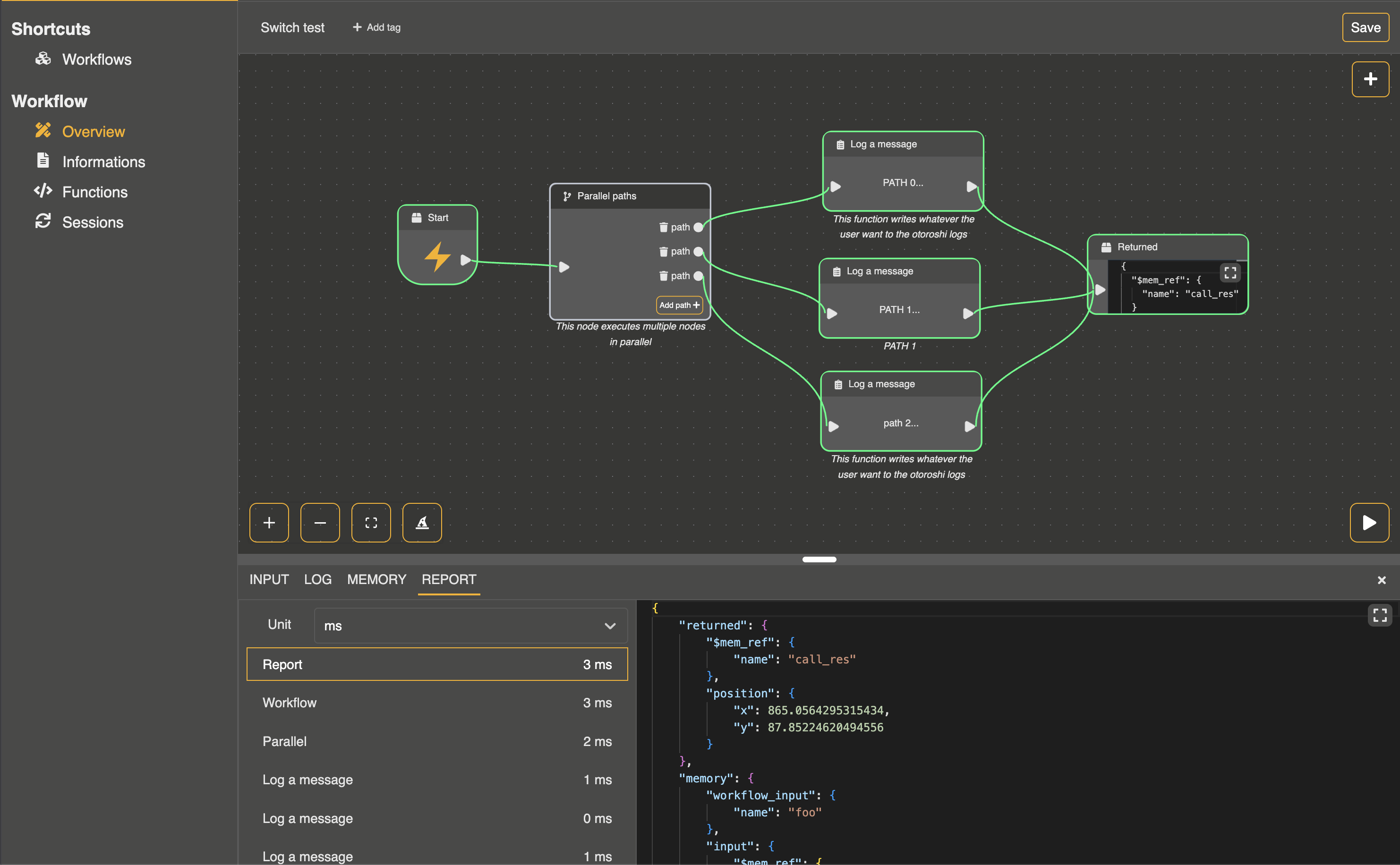
The Workflows Editor allows you to design, manage, and debug workflows visually. It is composed of a sidebar for navigation and a main panel for workflow interaction.
Sidebar Tabs
The sidebar contains four main tabs:
Overview
The Overview tab displays the workflow designer where you can:
- Create, move, and edit workflow nodes.
- Drag and drop handles from an existing node to automatically create a new node linked to it.
- Insert new nodes via the Insert Node button at the top-right corner of the main panel.
- Run or debug the workflow using the Play button at the bottom-right.
Informations
The Informations tab allows you to edit workflow metadata using forms. This includes workflow name, description, and other properties.
Functions
In the Functions tab, you can create custom functions that can be reused in the main workflow. These functions are available for linking or calling from workflow nodes.
Sessions
The Sessions tab displays all current running workflow sessions, which is especially useful for workflows triggered by cron jobs.
Main Panel
The main panel is where the workflow is visualized and interacted with. Key features include:
Node Insertion
Insert new nodes using the top-right Insert Node button or by dragging a handle from an existing node to create and link a new node automatically.
Running Workflows
Use the Play button (bottom-right) to run the workflow.
Debugging
Debug workflows by setting breakpoints on nodes:
- Hover over a node and click the red Breakpoint button.
- When debugging, the workflow executes step by step.
Debug View
During debugging, a bottom panel displays:
- Input Panel: Enter custom data to test workflow execution.
- Log Panel: View workflow logs in real-time.
- Memory Panel: Inspect the workflow’s internal memory at the current execution step.
- Final Report: Observe the dynamic results of the workflow execution step by step.